File menu
The File menu provides commands for opening workspaces and source files, saving and printing, and exiting from the IDE.
The menu also includes a numbered list of the most recently opened files and workspaces. To open one of them, choose it from the menu.
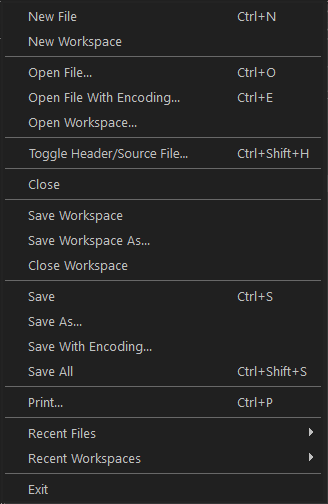
Menu commands
These commands are available:
- New File (Ctrl+N)
Creates a new text file.
- New Workspace
Creates a new workspace.
- Open File (Ctrl+O)
Displays an Open dialog box for selecting a text file or an HTML document to open. See Editor window.
- Open File with Encoding(Ctrl+E)
Displays an Open dialog box for selecting a file to open. Before the file is opened, the IDE tries to detect its encoding. If it fails or if you want to override the automatic detection, you can specify the encoding explicitly.
- Open Workspace
Displays an Open Workspace dialog box for selecting a workspace file to open. Before a new workspace is opened you will be prompted to save and close any currently open workspaces. (You can also open a workspace file by dragging the file and dropping it onto the main IDE window.)
- Toggle Header/Source File (Ctrl+Shift+H)
Opens the header file or source file that corresponds to the current file, and shifts focus from the current file to the newly opened file. This command is also available on the context menu in the editor window.
- Close
Closes the active window. You will be given the opportunity to save any files that have been modified before closing.
- Save Workspace
Saves the current workspace file.
- Save Workspace As
Displays a Save Workspace As dialog box for saving the workspace with a new name.
- Close Workspace
Closes the current workspace file.
- Save (Ctrl+S)
Saves the current text file or workspace file.
- Save As
Displays a Save As dialog box where you can save the current file with a new name.
- Save File with Encoding
Saves the current editor file. Before the file is saved, you are prompted to explicitly specify its encoding.
- Save All
Saves all open text documents and workspace files.
- Print (Ctrl+P)
Displays a Print dialog box where you can print a text document.
- Recent Files
Displays a submenu from where you can quickly open the most recently opened text documents.
- Recent Workspaces
Displays a submenu from where you can quickly open the most recently opened workspace files.
- Exit
Exits from the IDE. You will be asked whether to save any changes to text files before closing them. Changes to the project are saved automatically.