Window menu
The Window menu provides commands for manipulating the IDE windows and changing their arrangement on the screen.
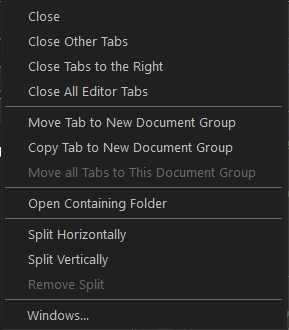
The last section of the Window menu lists the currently open windows. Choose the window you want to switch to.
Menu commands
These commands are available:
- Close
Closes the active editor document.
- Close Other Tabs
Closes all open editor documents except for the active document.
- Close Tabs to the RIght
Closes all open editor documents to the right of the active document in the editor window.
- Close All Editor Tabs
Closes all open editor documents.
- Move Tab to New Editor Group
Opens a new empty window next to the active editor window and moves the active document to the new window.
- Copy Tab to New Editor Group
Opens a new empty window next to the active editor window and displays the active editor document in the new window as well.
- Move All Tabs to This Document Group
Moves all editor documents to the current editor window and closes the other windows.
- Open Containing Folder
Opens the location of the active editor document in a file explorer window.
- Split Horizontally
Splits an editor document view horizontally into two panes, which means that you can see two parts of a file simultaneously.
- Split Vertically
Splits an editor document view vertically into two panes, which means that you can see two parts of a file simultaneously.
- Remove Split
Removes the second pane of a split editor document view.