Sync With Folder on Disk dialog box
What do you want to do?
Learn about:
Learn how to:
Get reference information about the Sync With Folder on Disk dialog box, see below the line.

The Sync With Folder on Disk dialog box is available from the Project menu or the context menu in the Workspace window.
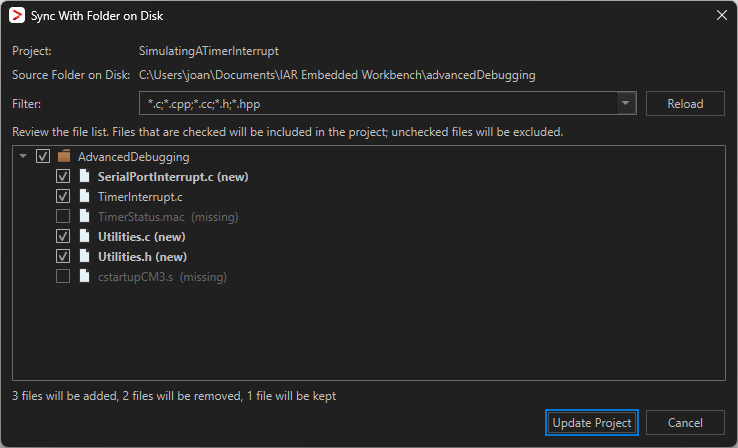
Use this dialog box to synchronize an existing project node with the current contents of a folder on disk.
Using this dialog box aligns the project with what actually exists in the selected source directory. It is useful when the project already contains files from a specific folder and you want to bring it up to date after external file operations such as:
Adding new files to the folder
Deleting files from the folder
Renaming or moving files inside the folder
The dialog box can both add new files to the project and remove files that no longer exist on disk. Use the checkboxes to control this:
Files with a checkmark will be included in the project when you click Update Project.
Files with no checkmark will be removed from the project when you click Update Project.
Only user-added files are affected by this process. Files generated by the build process are not affected.
ヒント
This feature is useful for repeated workflows, for example, if you regularly refresh a project node from a folder with generated files or imported SDK modules.
Filter
Choose which file types to display in the list and click Reload.
Explanations
This table explains the comments in parentheses after the filenames in the list:
(in different folder) | This file is located in another directory which is not included in this synchronization. To synchronize it, synchronize that folder separately. |
(missing) | This file exists in the project but not on disk. It will be removed from the project. Important: This can be because the filter is not set to display the file type. |
(moved) | This file has been moved from its previous location. It will not be removed from the project. |
(new) | This file exists on disk but not in the project. It will be added to the project. |