Executing macros using Quick Watch
The Quick Watch window lets you dynamically choose when to execute a macro function.
Consider this simple macro function that checks the status of a timer enable bit:
TimerStatus()
{
  if ((TimerStatreg & 0x01) != 0)/* Checks the status of reg */
    return "Timer enabled"; /* C-SPY macro string used */
  else
    return "Timer disabled"; /* C-SPY macro string used */
}
Save the macro function using the filename extension
mac.To load the macro file, choose View>Macros>Macro Registration. The Macro Registration window is displayed. Click Add and locate the file using the file browser. The macro file appears in the list of macros in the Macro Registration window.
Select the macro you want to register and your macro will appear in the Debugger Macros window.
Choose View>Quick Watch to open the Quick Watch window, type the macro call
TimerStatus()in the text field and press Return,Alternatively, in the macro file editor window, select the macro function name
TimerStatus(). Right-click, and choose Quick Watch from the context menu that appears.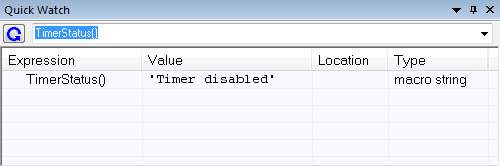
The macro will automatically be displayed in the Quick Watch window. For more information, see Quick Watch window.