SFR Setup window
What do you want to do?
Learn about:
Learn how to:
Get reference information about the SFR Setup window, see below the line.

The SFR Setup window is available from the Project menu.
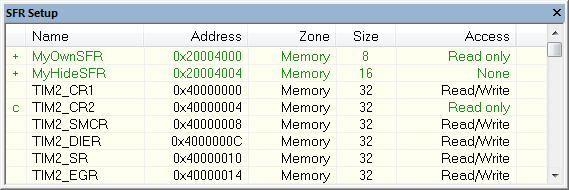
This window displays ....
To quickly find an SFR, drag a text or hexadecimal number string and drop in this window. If what you drop starts with a 0 (zero), the Address column is searched, otherwise the Name column is searched.
Any custom-defined SFRs are added to a dedicated register group called Custom, which you can choose to display in the Registers window. Your custom-defined SFRs are saved in projectCustomSFR.sfr. This file is automatically loaded in the IDE when you start C-SPY with a project whose name matches the prefix of the filename of the sfr file.
You can only add or modify SFRs when the C-SPY debugger is not running.
Context menu
This context menu is available:
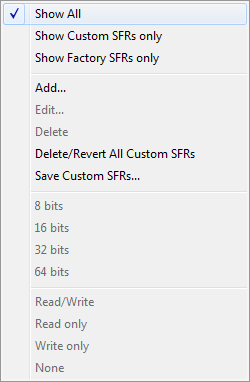
These commands are available:
- Add
Displays the Edit SFR dialog box where you can add a new SFR, see Edit SFR dialog box.
- Edit
Displays the Edit SFR dialog box where you can edit an SFR, see Edit SFR dialog box.
- Delete
Deletes an SFR. This command only works on custom-defined SFRs.
- 8|16|32|64 bits
Selects display format for the selected SFR, which can be 8, 16, 32, or 64 bits. Note that the display format can only be changed for custom-defined SFRs.
- Read/Write|Read only|Write only|None
Selects the access type of the selected SFR, which can be Read/Write, Read only, Write only, or None. Note that for factory-defined SFRs, the default access type is indicated.