Power Log Setup window
What do you want to do?
Learn about:
Learn how to:
Get related information:
Get reference information about the Power Log Setup window, see below the line.

The Power Log Setupwindow is available from the C-SPY driver menu during a debug session.
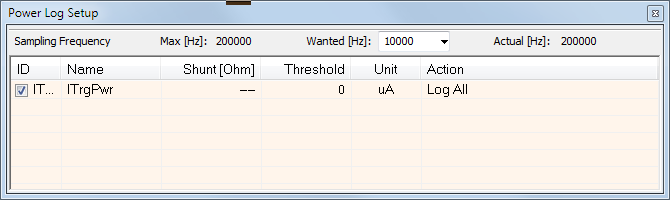
Use this window to configure the power measurement.
Note
To enable power logging, choose Enable from the context menu in the Power Log window or from the context menu in the power graph in the Timeline window.
Requirements
A debug probe with support for power debugging and one of these alternatives:
The C-SPY I-jet driver
The C-SPY J-Link/J-Trace driver
The C-SPY ST-LINK driver
The C-SPY TI MSP-FET driver
The C-SPY TI XDS driver
Sampling Frequency toolbar
Use this toolbar to override the default sampling frequency, and to inspect the maximum and the actual sampling frequency.
- Max [Hz]
This is the maximum supported sampling frequency in Hertz.
- Wanted [Hz]
Use this option to override the default sampling frequency. The frequency you enter will be rounded to the nearest possible value, and the Actual [Hz] value will be updated accordingly.
- Actual [Hz]
This is the actual sampling frequency being used.
Display area
This area contains these columns:
- ID
A unique string that identifies the measurement channel in the probe. Select the check box to activate the channel. If the check box is deselected, logs will not be generated for that channel.
- Name
Specify a user-defined name.
- Shunt [Ohm]
This column always contains
‑‑(two dashes) for all debug probes except I-scope. For I-scope, specify the resistance of the shunt.
- Threshold
Specify a threshold value in the selected unit. The action you specify will be executed when the threshold value is reached.
- Unit
Displays the selected unit for power. You can choose a unit from the context menu.
- Action
Displays the selected action for the measurement channel. Choose between:
Log All
Log Above Threshold
Log Below Threshold
Log All and Halt CPU Above Threshold
Log All and Halt CPU Below Threshold
Context menu
This context menu is available:
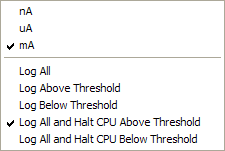
These commands are available:
- nA, uA, mA
Selects the unit for the power display. These alternatives are available for channels that measure current.
- uV, mV, V
Selects the unit for power display. These alternatives are available for channels that measure voltage.
- uWs, mWs, Ws
Selects the unit for power display. These alternatives are available for channels that measure energy.
- Log All
Logs all values.
- Log Above Threshold
Logs all values above the threshold.
- Log Below Threshold
Logs all values below the threshold.
- Log All and Halt CPU Above Threshold
Logs all values. If a logged value exceeds the threshold, execution is stopped. This might take a few execution cycles.
- Log All and Halt CPU Below Threshold
Logs all values. If a logged value goes below the threshold, execution is stopped. This might take a few execution cycles.