- IAR Embedded Workbench for Arm 9.70.x
- C-SPY Debugging
- Trace
- Reference information on trace
- ETM Trace Settings dialog box (I-jet)
ETM Trace Settings dialog box (I-jet)
The ETM Trace Settings dialog box is available from the C-SPY driver menu.
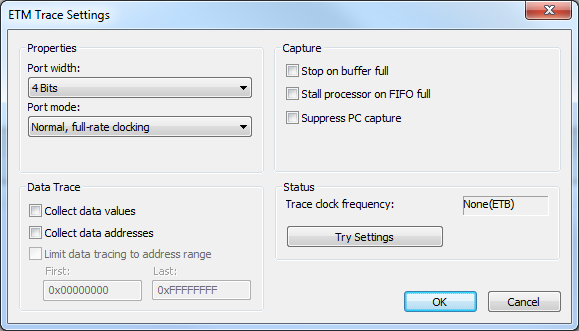
Use this dialog box to configure ETM trace generation and collection.
See also:
Requirements
One of these alternatives:
The C-SPY I-jet driver
The C-SPY CMSIS-DAP driver
Port width
Specifies the trace bus width, which can be set to 1, 2, 4, 8, or 16-bits. The value must correspond with what is supported by the hardware and the debug probe.
For the lower values, the risk of FIFO buffer overflow increases, unless you are using the Stall processor on FIFO full option.
Port mode
Specifies the used trace clock rate:
Normal, full-rate clocking
Normal, half-rate clocking
Data Trace
Selects what type of trace data you want C-SPY to collect. Data trace is only available for Arm7/Arm9/Arm11-based devices with ETM data trace. Choose between:
- Collect data values
Collects data values.
- Collect data addresses
Collects data addresses.
- Limit data tracing to address range
Collects the specified type of data within the address range you specify in the First and Last text boxes.
Capture
Normally, trace collection starts or stops when execution starts or stops, or when a Trace Start or Trace Stop breakpoint is triggered. To change this, choose between:
- Stop on buffer full
Stops collecting trace data when the probe buffer is full.
- Stall processor on FIFO full
Stalls the processor in case the FIFO buffer fills up. The trace FIFO buffer on the CPU might in some situations become full—FIFO buffer overflow—which means trace data will be lost. This can be the case when the CPU is executing several branch instructions close to each other in time, such as in tight loops.
- Suppress PC capture
Disables PC trace. Depending on your hardware, data trace might still be available.
Status
Shows the ETM status.
- Trace clock frequency
Shows the frequency of the trace clock to help you determine if the trace hardware is properly configured. Typically, this depends on the settings of Port Width and Port Mode.
- Apply settings
Applies the settings you made in this dialog box. The trace clock frequency will be updated.