Customize dialog box
What do you want to do?
Learn how to:
Get reference information about the Customize dialog box, see below the line.

The Customize dialog box is available by clicking the Toolbars Options button on the far right end of the a toolbar in the main IDE window and choosing Add or Remove Buttons>Customize.
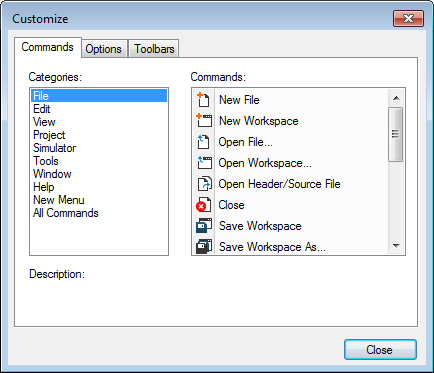
These are the options on the Commands page of the Customize dialog box:
Commands
Lists menu commands that can be dragged to one of the toolbars and inserted as buttons. If New Menu is the selected Category, the command New Menu can be dragged to a toolbar to add a custom drop-down menu to the toolbar. Commands from the Commands list can then be dragged to populate the custom menu.
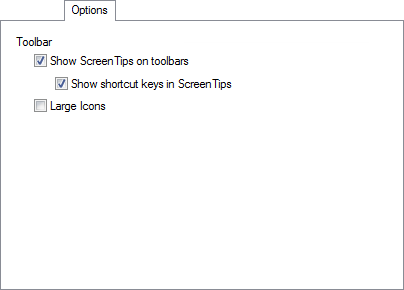
These are the options on the Options page of the Customize dialog box:
Large Icons
Increases the size of the buttons on the toolbars.
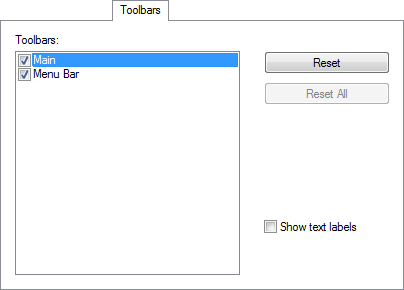
These are the options on the Toolbars page of the Customize dialog box: