Key Bindings options
What do you want to do?
Learn how to: Using and customizing editor commands and shortcut keys
Get reference information about the Key Bindings tools options, see below the line.

The Key Bindings options are available by choosing Tools>Options.
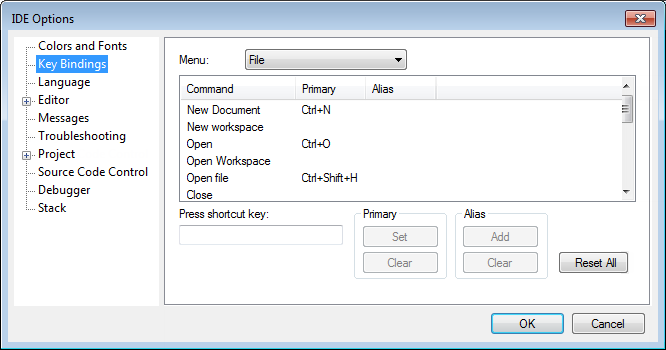
Use this page to customize the shortcut keys used for the IDE menu commands.
Menu
Selects the menu to be edited. Any currently defined shortcut keys for the selected menu are listed below the Menu drop-down list.
List of commands
Selects the menu command you want to configure your own shortcut keys for, from this list of all commands available on the selected menu.
Press shortcut key
Type the key combination you want to use as shortcut key for the selected command. You cannot set or add a shortcut if it is already used by another command.
Primary
Choose to:
- Set
Saves the key combination in the Press shortcut key field as a shortcut for the selected command in the list.
- Clear
Removes the listed primary key combination as a shortcut for the selected command in the list.
The new shortcut will be displayed next to the command on the menu.
Alias
Choose to:
- Add
Saves the key combination in the Press shortcut key field as an alias—a hidden shortcut—for the selected command in the list.
- Clear
Removes the listed alias key combination as a shortcut for the selected command in the list.
The new shortcut will be not displayed next to the command on the menu.