Trace Setup dialog box
What do you want to do?
Learn about:
Learn how to:
Get reference information about the Trace Setup dialog box; see below the line.

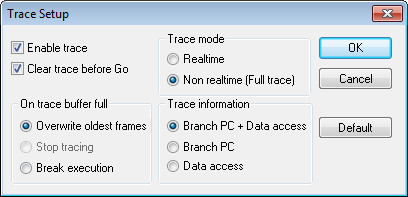
Use this dialog box to configure trace generation and collection. Some of these settings are also used by the interrupt logging.
See also Getting started with trace.
Requirements
The C-SPY E1/E2/E20 driver. Note that trace requires that interrupt logging is disabled.
Enable trace
Enables trace data collection.
Clear trace before Go
Empties the trace buffer before each Go or step command is performed.
On trace buffer full
Controls what C-SPY does when the trace buffer is full. Choose between:
- Overwrite oldest frames
The oldest frames are overwritten until a break occurs. If trace is disabled and interrupt logging is enabled, this setting means that the Interrupt Log window will display the last log entries before the break (~500 entries).
- Stop tracing
The trace stops when the trace buffer is full.
- Break execution
The trace stops and execution breaks when the trace buffer is full. If trace is disabled and interrupt logging is enabled, the Interrupt Log window will display all log entries in the buffer (~500 entries).
Trace mode
Controls how the trace collection is performed. Choose between:
- Realtime
Trace is performed at full execution speed. At this speed, some trace data will not be collected, leading to gaps in the information displayed in the Trace window.
- Non realtime (Full trace)
A full trace is performed. The trace collection starts at any Go or step command, and stops at break.
Trace information
Determines which types of trace data that C-SPY collects. Choose between:
- Branch PC + Data access
Collects both the contents of the program counter on branches, and data access information.
- Branch PC
Collects the contents of the program counter on branches that occurred during program execution.
- Data access
Collects data access information.
Default
Restores the default settings.