Adding a button to a toolbar
In this section:
The buttons on the IDE toolbars provide shortcuts for commands on the IDE menus.
Note
If you instead of adding a button want to show a button that has been hidden temporarily, see Showing/hiding toolbar buttons.
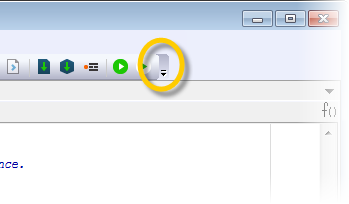
To add a new button to a toolbar in the main IDE window, click the Toolbar Options button and choose Add or Remove Buttons>Customize.
The Customize dialog box opens on the Commands page.
In the Categories list, select the menu on which the command you want to add to the toolbar is located.
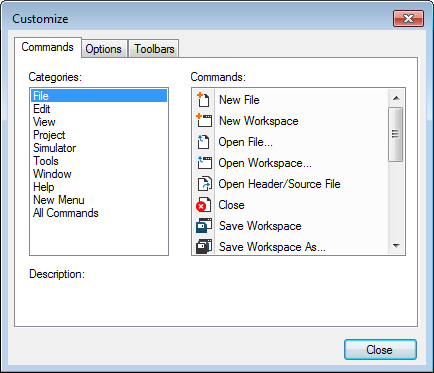
Drag a command from the Commands list to one of the toolbars where you want to insert the command as a button.
You can rearrange the existing buttons by dragging them to new positions.