Colors and Fonts options
What do you want to do?
Learn how to: Syntax coloring
Get reference information about the Colors and Fonts tools options, see below the line.

The Colors and Fonts options are available by choosing Tools>Options.
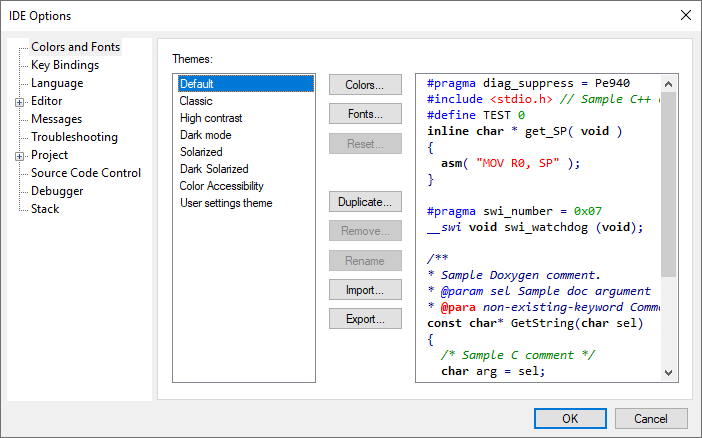
Use this page to configure the colors and fonts used for the windows in the IDE.
Themes
A colors and fonts theme is a combination of font and color settings for the IDE windows. Select the theme you want to use and either click OK to close the dialog box and apply the theme, or use the buttons in the dialog box to modify the theme. On the right-hand side of the dialog box is a preview of the settings you make. You can use one of the predefined themes or create your own custom theme.
The predefined themes are:
- Default
The theme used in the IDE unless you change it.
- Classic
The colors and fonts match older versions of the IAR Embedded Workbench IDE.
- User settings theme
If you had defined custom color settings in a version of IAR Embedded Workbench installed before the current version, it will appear here as a user settings theme.
Tip
To create your own custom theme, select the predefined theme you like best and click Duplicate, and modify the duplicated theme.
Colors
Opens the Edit Colors dialog box where you can change the colors used in the editor window, see Edit Colors dialog box.
Fonts
Opens the Edit Fonts dialog box where you can change the fonts used in all IDE windows, see Edit Fonts dialog box.