プロジェクトメニュー
プロジェクトメニューには、ワークスペース、プロジェクト、グループ、ファイルで作業するためのコマンド、ビルドツールのオプションの指定、現在のプロジェクトでツールを実行するためのコマンドが用意されています。
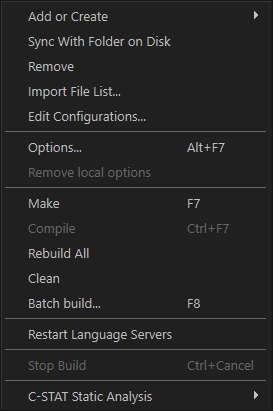
メニュー コマンド
以下のコマンドを使用できます。
- ファイルの追加
現在のプロジェクトに含めるファイルを選択できるダイアログボックスを表示します。
- Add or Create>Create New File
Displays a dialog box where you can choose a folder for a new file to add to the selected project. After you have specified a filename and an extension, an empty file will be created in the folder and added.
- Add or Create>Add Files From Folder
Displays a dialog box where you can choose a folder to add files from to the selected project, see Add Files From Folder dialog box.
- グループの追加
新しいグループを作成できるダイアログボックスを表示します。グループ名テキストボックスに、新しいグループの名前を指定します。グループの詳細については、グループを参照してください。
- Add or Create>Create New Project
Displays the Create New Project dialog box where you can create a new project and add it to the workspace, see 新規プロジェクトの作成ダイアログボックス.
- Add or Create>Add Existing Project
Displays a standard Open dialog box where you can add an existing project to the workspace.
- Add or Create>Add Project Connection
Displays the Project Connection Setup dialog box, see プロジェクトコネクションの追加ダイアログボックス.
- Sync With Folder on Disk
Displays a dialog box where you can compare the selected project in the workspace with the folder on disk where the project is stored, and synchronize the contents, see Sync With Folder on Disk dialog box.
- Remove
In the Workspace window, removes the selected item from the workspace.
- ファイルリストのインポート
標準の開くダイアログボックスを表示します。ここでは、別のIARツールチェーンを使用して作成したプロジェクトからファイルやグループに関する情報をインポートできます。
古いファイル名拡張子
pewまたはprjのいずれかを持つプロジェクトファイルから情報をインポートするには、現在のIAR Embedded Workbenchのコンテキストメニューにあるファイルリストのエクスポートコマンドを使用して、先に情報をエクスポートする必要があります。- ビルド構成の編集
プロジェクトの構成ダイアログボックスを表示し、新しいビルド構成を定義したり、既存のビルド構成を削除したりできます。プロジェクトの構成ダイアログボックスを参照してください。
- オプション(Alt+F7)
オプションダイアログボックスを表示します。ここでは、ワークスペースウィンドウで選択した項目のビルドツールのオプションを設定できます。オプションダイアログボックスを参照してください。プロジェクト全体、ファイルグループ、または個々のファイルのオプションを設定できます。
- Remove Local Options
Removes local settings/overrides for the selected file/group, to sync with the inherited settings.
- メイク (F7)
前回のビルド以降に変更されたファイルのみをコンパイル、アセンブル、リンクすることで、現在のビルド構成を更新します。
- コンパイル(Ctrl+F7)
現在選択されているファイル、複数ファイル、またはグループをコンパイルまたはアセンブルします。
ワークスペースウィンドウで 1 つ以上のファイルを選択できます。すべてのファイルは同じプロジェクトに含まれますが、必ずしも同じグループに含まれるわけではありません。コンパイルするファイルを含むエディタウィンドウを選択することもできます。コンパイルコマンドは、選択したすべてのファイルをコンパイルまたはアセンブルできる場合にのみ有効になります。
グループを選択することもできます。この場合、グループにコンパイルできないファイル (ヘッダファイルなど) が含まれていても、コンパイル可能なグループ (ネストされたグループ内も含む) の各ファイルにコマンドが適用されます。
選択したファイルが複数ファイルのコンパイルグループの一部である場合、コマンドは選択したファイルにのみ影響します。
- すべてを再ビルド
現在のターゲット内のすべてのファイルをリビルドし、再リンクします。
- クリーン
すべての中間ファイルを削除します。
- バッチビルド (F8)
バッチビルドダイアログボックスを表示し、バッチビルド構成を名前を付けて設定したり、名前付きバッチをビルドできます。バッチビルドダイアログボックスを参照してください。
- Restart Language Servers
実行中の言語サーバーを停止して再起動します。
- Stop Build (Ctrl+Break on Windows, Pause on Linux)
Stops the current build operation.
- C-STAT 静的解析>プロジェクトの解析
C-STATが選択したプロジェクトを解析します。C-STATの詳細については、C-STAT® 静的解析ガイドを参照してください。
- C-STAT 静的解析>ファイルの解析
C-STATが選択したファイルを解析します。C-STATの詳細については、C-STAT® 静的解析ガイドを参照してください。
- C-STAT静的解析>解析結果のをクリア
以前に実行した解析の解析情報をC-STATで消去します。C-STATの詳細については、C-STAT® 静的解析ガイドを参照してください。
- C-STAT静的解析>HTMLサマリの生成
標準の保存ダイアログボックスを表示し、HTML形式のレポートサマリの保存先を選択して、サマリを作成します。C-STATの詳細については、C-STAT® 静的解析ガイドを参照してください。
- C-STAT静的解析>フルHTMLレポートの生成
標準の保存ダイアログボックスを表示し、 HTML 形式の完全なレポートの保存先を選択して、レポートを作成します。C-STATの詳細については、C-STAT® 静的解析ガイドを参照してください。
- C-STAT Static Analysis>Enable C-STAT in the Editor
Enables C-STAT as a Language Server in the editor, providing continuous feedback on your code. It uses the settings from the project, either checks selected in the IDE or from a configuration file's pattern matching. See 言語サーバー(Language Servers) オプション. For more information about C-STAT, see the C-STAT® Static Analysis GuideC-STAT® 静的解析ガイド.
- Import C-STAT Settings
Opens a standard open dialog box to use for locating and opening an XML file that contains the checks to perform. The contents of the file will be imported and can be modified on the Project>Options>Static Analysis>Select Checks page. For more information about C-STAT, see the C-STAT® Static Analysis GuideC-STAT® 静的解析ガイド.
- Export C-STAT Settings
Opens a standard save dialog box for saving an XML file with your currently selected checks. For more information about C-STAT, see the C-STAT® Static Analysis GuideC-STAT® 静的解析ガイド.
- Generate C-STAT Checks File
Opens a standard save dialog box where you can select where to save a list of the currently selected checks as a plain text file. For more information about C-STAT, see the C-STAT® Static Analysis GuideC-STAT® 静的解析ガイド.
- Export a C-STAT Configuration File
Generates a C-STAT configuration file based on the contents of the project file. For more information about C-STAT, see the C-STAT® Static Analysis GuideC-STAT® 静的解析ガイド.