- IAR Embedded Workbench for Arm 9.70.x
- C-SPY Debugging
- Trace
- Reference information on trace
- SWO Configuration dialog box
SWO Configuration dialog box
The SWO Configuration dialog box is available from the C-SPY driver menu, alternatively from the SWO Trace Window Settings dialog box.
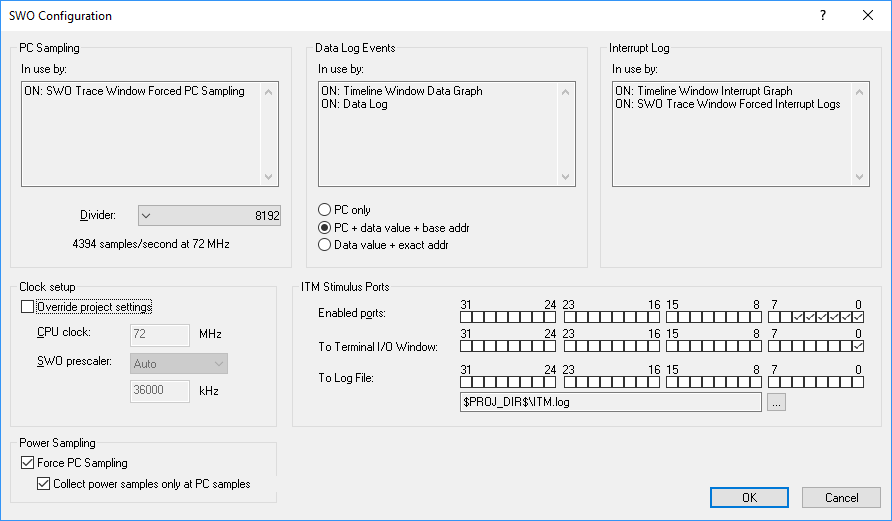
This figure reflects the C-SPY I-jet driver.
Use this dialog box to configure the serial-wire output communication channel and the hardware’s generation of trace data.
See also Getting started with SWO trace.
Requirements
One of these alternatives:
The C-SPY I-jet driver and an I-jet or I-jet Trace in-circuit debugging probe
The C-SPY J-Link/J-Trace driver and a J-Link/J-Trace JTAG/SWD probe
The C-SPY ST-LINK driver and an ST-LINK JTAG/SWD probe
The C-SPY TI XDS driver and a TI XDS probe
PC Sampling
Controls the behavior of the sampling of the program counter. You can specify:
- In use by
Lists the features in C-SPY that can use trace data for PC sampling. ON indicates features currently using trace data. OFF indicates features currently not using trace data.
- Rate
Use the drop-down list to choose the sampling rate, that is, the number of samples per second. The highest possible sampling rate depends on the SWO clock value and on how much other data that is sent over the SWO communication channel. The higher values in the list will not work if the SWO communication channel is not fast enough to handle that much data.
This option does not apply to I-jet.
- Divider
Select a divider, that, applied to the CPU clock speed, determines the rate of PC samples. The highest possible sampling rate depends on the SWO clock value and on how much other data that is sent over the SWO communication channel. The smaller values in the list will not work if the SWO communication channel is not fast enough to handle that much data.
This option only applies to I-jet.
Data Log Events
Specifies what to log when a Data Log breakpoint is triggered. These items are available:
- In use by
Lists the features in C-SPY that can use trace data for Data Log Events. ON indicates features currently using trace data. OFF indicates features currently not using trace data.
- PC only
Logs the value of the program counter.
- PC + data value + base addr
Logs the value of the program counter, the value of the data object, and its base address.
- Data value + exact addr
Logs the value of the data object and the exact address of the data object that was accessed.
Interrupt Log
Lists the features in C-SPY that can use trace data for Interrupt Logs. ON indicates features currently using trace data. OFF indicates features currently not using trace data.
For more information about interrupt logging, see Interrupts.
Override project default
Overrides the CPU clock and the SWO clock default values on the Project>Options>J-Link/J-Trace>Setup page, on the Project>Options>ST-Link>Communication page, or on the Project>Options>TI XDS>Communication page, respectively.
This option does not apply to I-jet.
Override project settings
Overrides the CPU clock and the SWO prescaler default values on the Project>Options>I-jet>Setup page.
This option only applies to I-jet.
CPU clock
Specify the exact clock frequency used by the internal processor clock, HCLK, in MHz. The value can have decimals.
This value is used for configuring the SWO communication speed.
For J-Link, ST-LINK, and TI XDS, this value is also used for calculating timestamps.
SWO clock
Specify the clock frequency of the SWO communication channel in kHz. Choose between:
- Autodetect
Automatically uses the highest possible frequency that the J-Link debug probe can handle. When it is selected, the Wanted text box displays that frequency.
- Wanted
Manually selects the frequency to be used, if Autodetect is not selected. The value can have decimals. Use this option if data packets are lost during transmission.
- Actual
Displays the frequency that is actually used. This can differ a little from the wanted frequency.
This option does not apply to I-jet.
SWO prescaler
Specify the clock prescaler of the SWO communication channel. The prescaler, in turn, determines the SWO clock frequency. If data packets are lost during transmission, try using a higher prescaler value. Choose between:
- Auto
Automatically uses the highest possible frequency that the I-jet debugging probe can handle.
- 1, 2, 5, 10, 20, 50, 100
The prescaler value.
This option only applies to I-jet.
Timestamps
Selects the resolution of the timestamp value. For example, 1 to count every cycle, or 16 to count every 16th cycle. Note that the lowest resolution is only useful if the time between each event packet is long enough.
This option does not apply to I-jet.
ITM Stimulus Ports
Selects which ports you want to redirect and to where. The ITM Stimulus Ports are used for sending data from your application to the debugger host without stopping the program execution. There are 32 such ports. Choose between:
- Enabled ports
Enables the ports to be used. Only enabled ports will actually send any data over the SWO communication channel to the debugger.
Port 0 is used by the terminal I/O library functions.
Ports 1-4 are used by the ITM macros for the Event Log window.
Port 5 is used for an optional PC value added to the ITM macro.
- To Terminal I/O window
Specifies the ports to use for routing data to the Terminal I/O window.
- To Log File
Specifies the ports to use for routing data to a log file. To use a different log file than the default one, use the browse button.
Tip
The stdout and stderr of your application can be routed via SWO to the C-SPY Terminal I/O window, instead of via semihosting. To achieve this, choose Project>Options>General Options>Library Configuration>Library low-level interface implementation>stdout/stderr>Via SWO. This will significantly improve the performance of stdout/stderr, compared to when semihosting is used.
This can be disabled if you deselect the port settings in the Enabled ports and To Terminal I/O options.
Power Sampling
- Force PC Sampling
Forces PC sampling, even when no other C-SPY features have requested it. This makes it possible to associate PC values with power samples.
- Collect power samples only at PC samples
Collects power samples only at PC samples, so that every power sample can be associated with a program counter position.