Viewing the workspace and its projects
The Workspace window is where you access your projects and files during the application development.
To choose which project you want to view, click its tab at the bottom of the Workspace window.
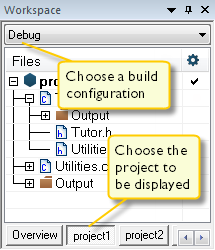
For each file that has been built, an
Outputfolder icon appears, containing generated files, such as object files and list files. The latter is only generated if the list file option is enabled. TheOutputfolder related to the project node contains generated files related to the whole project, such as the executable file and the linker map file (if the list file option is enabled).Also, any included header files will appear, showing dependencies at a glance.
To display the project with a different build configuration, choose that build configuration from the drop-down list at the top of the Workspace window.
The project and build configuration you have selected are displayed highlighted in the Workspace window. It is the project and build configuration that you select from the drop-down list that are built when you build your application.
To display an overview of all projects in the workspace, click the Overview tab at the bottom of the Workspace window.
An overview of all project members is displayed.
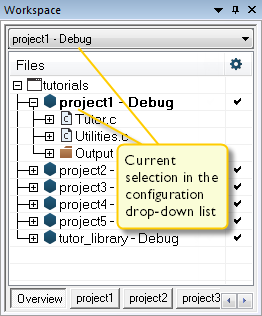
The current selection in the Build Configuration drop-down list is also highlighted when an overview of the workspace is displayed.