Editor options
What do you want to do?
Learn about the editor, see Introduction to the IAR Embedded Workbench editor
Learn how to: Editing a file
Get reference information about the Editor tools options, see below the line.

The Editor options are available by choosing Tools>Options.
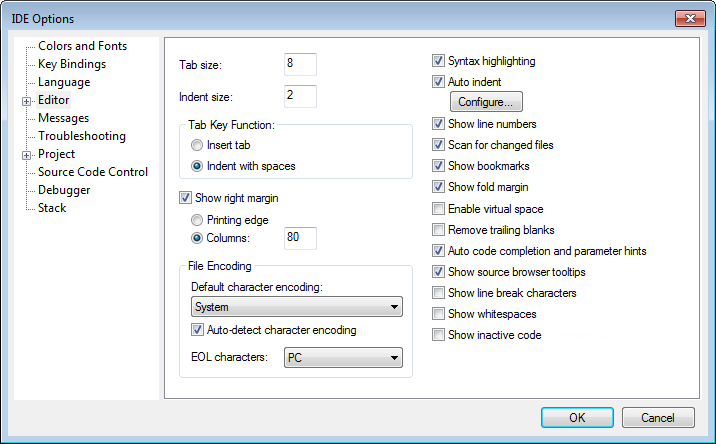
Use this page to configure the editor. For more information about the editor, see Editing.
Show right margin
Displays the area of the editor window outside the right margin as a light gray field. If this option is selected, you can set the width of the text area between the left margin and the right margin. Choose to set the width based on:
- Printing edge
Bases the width on the printable area, which is taken from the general printer settings.
- Columns
Bases the width on the number of columns.
File Encoding
Controls file encoding. Choose between:
- Default character encoding
Selects the character encoding to be used by default for new files. Choose between:
System (uses the Windows settings)
Western European
UTF-8
Japanese (Shift-JIS)
Chinese Simplified (GB2312)
Chinese Traditional (Big5)
Korean (Unified Hangul Code)
Arabic
Central European
Greek
Hebrew
Thai
Baltic
Russian
Vietnamese
Note that if you have specified a character encoding from the editor window context menu, that encoding will override this setting for the specific document.
- EOL characters
Selects which line break character to use when editor documents are saved. Choose between:
PC (default), Windows and DOS end of line characters.
UNIX, UNIX end of line characters.
Preserve, the same end of line character as the file had when it was opened, either PC or UNIX. If both types or neither type are present in the opened file, PC end of line characters are used.
Syntax highlighting
Makes the editor display the syntax of C or C++ applications in different text styles.
For more information about syntax highlighting, see Edit Colors dialog box and Syntax coloring.
Auto indent
Makes the editor indent the new line automatically when you press Return. For C/C++ source files, click the Configure button to configure the automatic indentation, see Configure Auto Indent dialog box. For all other text files, the new line will have the same indentation as the previous line.
Scan for changed files
Makes the editor reload files that have been modified by another tool.
If a file is open in the IDE, and the same file has concurrently been modified by another tool, the file will be automatically reloaded in the IDE. However, if you already started to edit the file, you will be prompted before the file is reloaded.
Show bookmarks
Makes the editor display a column on the left side in the editor window, with icons for compiler errors and warnings, Find in Files results, user bookmarks, and breakpoints.
Show fold margin
Makes the editor display the fold margin in the left side of the editor window. For more information, see Code folding.
Remove trailing blanks
Removes trailing blanks from files when they are saved to disk. Trailing blanks are blank spaces between the last non-blank character and the end of line character.
Auto code completion and parameter hints
Enables code completion and parameter hints. For more information, see Editing a file.
Show source browser tooltips
Toggles the display of detailed information about the identifier that the cursor currently hovers over.
Show line break characters
Toggles the display of carriage return and line feed characters in the editor window.