Window menu
The Window menu provides commands for manipulating the IDE windows and changing their arrangement on the screen.
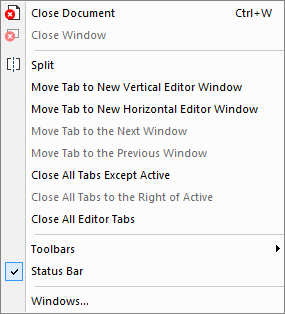
The last section of the Window menu lists the currently open windows. Choose the window you want to switch to.
Menu commands
These commands are available:
- Close Document (Ctrl+W)

Closes the active editor document.
- Close Window

Closes the active IDE window.
- Split

Splits an editor window horizontally into two panes, which means that you can see two parts of a file simultaneously.
- Move Tab to New Vertical Editor Window
Opens a new empty window next to the current editor window and moves the active document to the new window.
- Move Tab to New Horizontal Editor Window
Opens a new empty window under the current editor window and moves the active document to the new window.
- Move Tab to the Next Window
Moves the active document in the current window to the next window.
- Move Tab to the Previous Window
Moves the active document in the current window to the previous window.
- Close All Tabs Except Active
Closes all the tabs except the current tab.
- Close All Tabs to the Right of Active
Closes all tabs to the right of the current tab.
- Close All Editor Tabs
Closes all tabs currently available in editor windows.
- Toolbars
The options on this submenu toggle the toolbars on or off. There might be toolbars that are only available for certain C-SPY debug drivers, and only during a debug session.
- Status bar
Toggles the status bar on or off.