Getting started using external analyzers
To add an external analyzer to the Project menu, choose Tools>Options to open the IDE Options dialog box and select the Project>External Analyzers page.
To configure the invocation, click Add to open the External Analyzer dialog box.
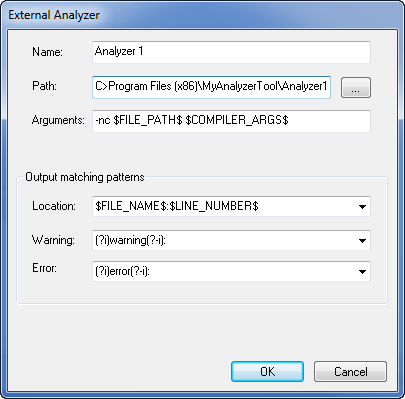
Specify the details required for the analyzer you want to be able to invoke.
Use Output matching patterns to specify (or choose from a list) three regular expressions for identifying warning and error messages and to find references to source file locations.
Click OK when you have finished.
For more information about this dialog box, see External Analyzer dialog box.
In the IDE Options dialog box, click OK.
Choose Project>Analyze Project and select the analyzer that you want to run, alternatively choose Analyze File(s) to run the analyzer on individual files.
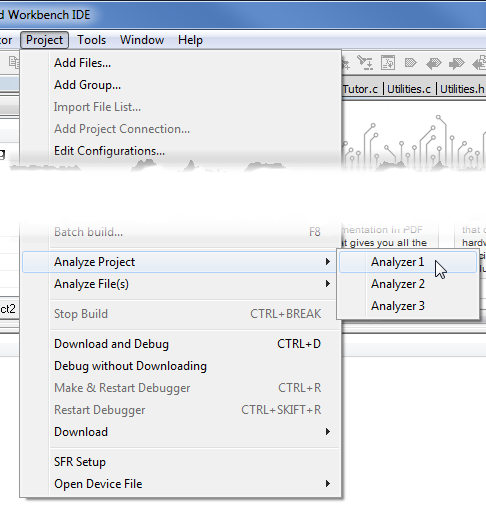
Each of the regular expressions that you specified will be applied on each line of output from the external analyzer. Output from the analyzer is listed in the Build Log window. You can double-click any line that matches the Location regular expression you specified in the External Analyzer dialog box to jump to the corresponding location in the editor window.
Note
If you want to stop the analysis before it is finished, click the Stop Build button.