Project menu
The Project menu provides commands for working with workspaces, projects, groups, and files, and for specifying options for the build tools.
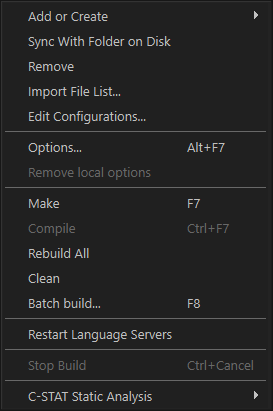
Menu commands
These commands are available:
- Add or Create>Add Files
Displays a dialog box where you can select files to include in the selected project.
- Add or Create>Create New File
Displays a dialog box where you can choose a folder for a new file to add to the selected project. After you have specified a filename and an extension, an empty file will be created in the folder and added.
- Add or Create>Add Files From Folder
Displays a dialog box where you can choose a folder to add files from to the selected project, see Add Files From Folder dialog box.
- Add or Create>Create New Group
Displays a dialog box where you can create a new group. In the Group Name text box, specify the name of the new group. For more information about groups, see Groups.
- Add or Create>Create New Project
Displays the Create New Project dialog box where you can create a new project and add it to the workspace, see Create New Project dialog box.
- Add or Create>Add Existing Project
Displays a standard Open dialog box where you can add an existing project to the workspace.
- Add or Create>Add Project Connection
Displays the Project Connection Setup dialog box, see Project Connection Setup dialog box.
- Sync With Folder on Disk
Displays a dialog box where you can compare the selected project in the workspace with the folder on disk where the project is stored, and synchronize the contents, see Sync With Folder on Disk dialog box.
- Remove
In the Workspace window, removes the selected item from the workspace.
- Import File List
Displays a standard Open dialog box where you can import information about files and groups from projects created using another IAR toolchain.
To import information from project files which have one of the older filename extensions
peworprjyou must first have exported the information using the context menu command Export File List available in your current IAR Embedded Workbench.- Edit Configurations
Displays the Configurations for project dialog box, where you can define new or remove existing build configurations. See Configurations for project dialog box.
- Options (Alt+F7)
Displays the Options dialog box, where you can set options for the build tools, for the selected item in the Workspace window, see Options dialog box. You can set options for the entire project, for a group of files, or for an individual file.
- Remove Local Options
Removes local settings/overrides for the selected file/group, to sync with the inherited settings.
- Make (F7)
Brings the current build configuration up to date by compiling, assembling, and linking only the files that have changed since the last build.
- Compile (Ctrl+F7)
Compiles or assembles the currently selected file, files, or group.
One or more files can be selected in the Workspace window—all files in the same project, but not necessarily in the same group. You can also select the editor window containing the file you want to compile. The Compile command is only enabled if all files in the selection can be compiled or assembled.
You can also select a group, in which case the command is applied to each file in the group (also inside nested groups) that can be compiled, even if the group contains files that cannot be compiled, such as header files.
If the selected file is part of a multi-file compilation group, the command will still only affect the selected file.
- Rebuild All
Rebuilds and relinks all files in the current target.
- Clean
Removes any intermediate files.
- Batch Build (F8)
Displays the Batch Build dialog box where you can configure named batch build configurations, and build a named batch. See Batch Build dialog box.
- Restart Language Servers
Stops and restarts any running language servers.
- Stop Build (Ctrl+Break on Windows, Pause on Linux)
Stops the current build operation.
- C-STAT Static Analysis>Analyze Project
Makes C-STAT analyze the selected project. For more information about C-STAT, see the C-STAT® Static Analysis Guide.
- C-STAT Static Analysis>Analyze File(s)
Makes C-STAT analyze the selected file(s). For more information about C-STAT, see the C-STAT® Static Analysis Guide.
- C-STAT Static Analysis>Clear Analysis Results
Makes C-STAT clear the analysis information for previously performed analyses. For more information about C-STAT, see the C-STAT® Static Analysis Guide.
- C-STAT Static Analysis>Generate HTML Summary
Shows a standard save dialog box where you can select the destination for a report summary in HTML and create it. For more information about C-STAT, see the C-STAT® Static Analysis Guide.
- C-STAT Static Analysis>Generate Full HTML Report
Shows a standard save dialog box where you can select the destination for a full report in HTML and create it. For more information about C-STAT, see the C-STAT® Static Analysis Guide.
- C-STAT Static Analysis>Enable C-STAT in the Editor
Enables C-STAT as a Language Server in the editor, providing continuous feedback on your code. It uses the settings from the project, either checks selected in the IDE or from a configuration file's pattern matching. See Language Servers options. For more information about C-STAT, see the C-STAT® Static Analysis Guide.
- Import C-STAT Settings
Opens a standard open dialog box to use for locating and opening an XML file that contains the checks to perform. The contents of the file will be imported and can be modified on the Project>Options>Static Analysis>Select Checks page. For more information about C-STAT, see the C-STAT® Static Analysis Guide.
- Export C-STAT Settings
Opens a standard save dialog box for saving an XML file with your currently selected checks. For more information about C-STAT, see the C-STAT® Static Analysis Guide.
- Generate C-STAT Checks File
Opens a standard save dialog box where you can select where to save a list of the currently selected checks as a plain text file. For more information about C-STAT, see the C-STAT® Static Analysis Guide.
- Export a C-STAT Configuration File
Generates a C-STAT configuration file based on the contents of the project file. For more information about C-STAT, see the C-STAT® Static Analysis Guide.