J-Link menu
When you are using the C-SPY J-Link driver, the J-Link menu is added to the menu bar.
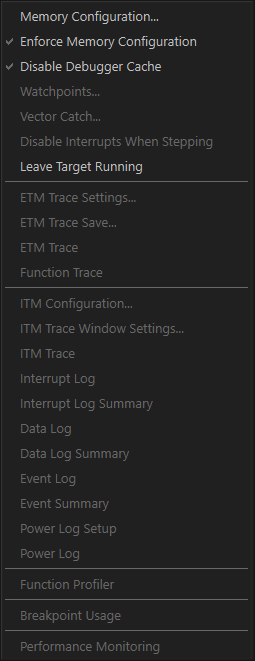
Menu commands
These commands are available on the menu:
- Memory Configuration
Displays a dialog box, see Memory Configuration dialog box for C-SPY hardware debugger drivers.
- Enforce Memory Configuration
Prevents the driver from accessing any memory ranges in the zone
Memorythat have not been defined in the Memory Configuration dialog box.
- Disable Debugger Cache
Disables memory caching and memory range checking in C-SPY.
Normally, C-SPY uses the memory range information in the Memory Configuration dialog box both to restrict access to certain parts of target memory and to cache target memory contents for improved C-SPY performance. Under certain rare circumstances, this is not appropriate, and you can choose Disable Debugger Cache to turn off the caching and memory range checking completely. All accesses from C-SPY will then result in corresponding accesses to the target system. Some of those circumstances are:
When memory is remapped at runtime and cannot be specified as a fixed set of ranges.
When the memory range setup is incorrect or incomplete.
- Watchpoints
Displays a dialog box for setting watchpoints, see Code breakpoints dialog box.
- Vector Catch
Displays a dialog box for setting a breakpoint directly on a vector in the interrupt vector table, see Vector Catch dialog box. Note that this command is not available for all Arm cores.
- Disable Interrupts When Stepping
Ensures that only the stepped statements will be executed. Interrupts will not be executed. This command can be used when not running at full speed and some interrupts interfere with the debugging process.
- Leave Target Running
Leaves the application running on the target hardware after the debug session is closed.
Because existing breakpoints might not be automatically removed, consider disabling all breakpoints before using this menu command.
- ETM Trace Settings
Displays a dialog box to configure ETM trace data generation and collection, see ETM Trace Settings dialog box.
This menu command is only available when using either ETM or J-Link with ETB.
- ETM Trace Save
Displays a dialog box to save the collected trace data to a file, see Trace Save dialog box.
This menu command is only available when using either ETM or J-Link with ETB.
- ETM Trace
Opens the ETM Trace window to display the collected trace data, see Trace window.
This menu command is only available when using either ETM or J-Link with ETB.
- Function Trace
Opens a window which displays the trace data for function calls and function returns, see ETM Function Trace window.
This menu command is only available when using either ETM or J-Link with ETB.
- ITM Configuration
Displays a dialog box, see ITM Configuration dialog box.
This menu command is only available when ITM trace is used.
- ITM Trace Window Settings
Displays a dialog box, see ITM Trace Window Settings dialog box.
This menu command is only available when ITM trace is used.
- ITM Trace
Opens the SWO Trace window to display the collected trace data, see Trace window.
This menu command is only available when ITM trace is used.
- Interrupt Log
Opens a window, see Interrupt Log window.
This menu command is only available when ITM trace is used.
- Interrupt Log Summary
Opens a window, see Interrupt Log Summary window.
This menu command is only available when ITM trace is used.
- Data Log
Opens a window, see Data Log window.
This menu command is only available when ITM trace is used.
- Data Log Summary
Opens a window, see Data Log Summary window.
This menu command is only available when ITM trace is used.
- Event Log
Opens a window, see Event Log window.
This menu command is only available when ITM trace is used.
- Event Log Summary
Opens a window, see Event Log Summary window.
This menu command is only available when ITM trace is used.
- Power Log Setup
Opens a window, see Power Log Setup window.
- Power Log
Opens a window, see Power Log window.
- Timeline
Opens a window, see The application timeline.
- Function Profiler
Opens a window which shows timing information for the functions, see Function Profiler window.
- Breakpoint Usage
Opens a window which lists all active breakpoints, see Breakpoint Usage window.
- Performance Monitoring
Opens a window which shows event counters or CPU clock cycles through the Performance Monitoring Unit (PMU), see Performance Monitoring window.